Wednesday, 19 November 2014

How to change your IP address

Change IP

How to change your IP address

If you want to change your IP address on your home computer, there are few ways that might work for you—some simple, some not. Before trying more complicated/technical methods described below, you can try something that's very easy.
  • Simply turn off or unplug your modem for about five minutes. (You don't have to turn your computer off.) In many cases this alone will change your IP address when you go back online.
  • If that doesn't work, try unplugging your modem overnight and checking your IP address the next morning.
To check the IP address you're currently using, simply go to our homepage. Hopefully one of these simpler steps will give you the result you wanted.

Have laptop, go mobile

If you have a laptop, you can switch to a new IP address very easily, if only temporarily—but you can do it anytime you want.
Just go to any coffee shop, bookstore or other place that offers free wireless Internet (Wi-Fi®). Your IP address will automatically change because you'll be using a different Internet connection to send email or join chat rooms.

How about a proxy?

If you're trying to change your IP address primarily because you want to access web-based forums, you may wish to look into using a proxy server. Learn more by reading our article on proxies.

What next?

If you're not the technical type, contact your Internet service provider (ISP) and ask them if they are able to change your IP address or how long your connection needs to be off for your IP address to change.
If you're up for more-advanced methods, and you use Windows, try the steps below and see if your IP address changes.

For Windows users

- Computer connected directly to a cable or DSL modem
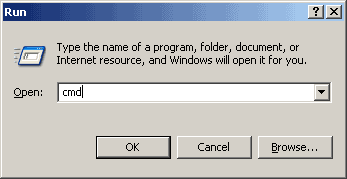
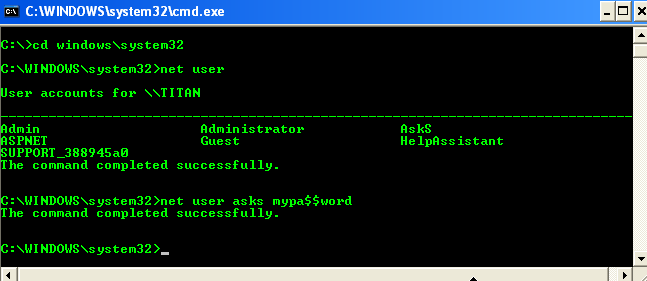
  1. Get to a command prompt. (START, run, cmd).
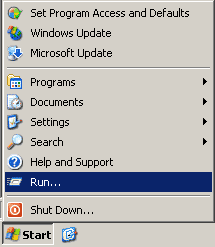
    Start Menu Run Box
  2. Type "ipconfig /release" (without the quotes, on the command line by itself).
  3. Shut down computer.
  4. Turn off computer.
  5. Turn off all ethernet hubs/switches.
  6. Turn off cable/DSL modem.
  7. Leave off overnight.
  8. Turn everything back on.

For networks using a Router

  1. Log into the router's admin console. (Often http://192.168.1.1/)
  2. Release the IP address (method varies by router manufacturer)
  3. Turn off router, ethernet hubs/switches, and the cable/DSL modem
  4. Leave off overnight
  5. Next day, turn everything back on
If you are using a cable/DSL modem and a router, you may wish to connect your computer directly to the cable/DSL modem. Please note that this could significantly impact your system security.
If you have a router and you're still not having any luck, check to see if there is a "Clone MAC Address" option. Using it should change your IP address; however, in most cases you'll only be able to do it once.
If this does not answer your question, please visit the change IP address forum.

Monday, 10 November 2014

Chat with Friends through Command Prompt

Chat with Friends through Command Prompt

 1) All you need is your friend's IP Address and your Command Prompt.

2) Open Notepad and write this code as it is.....!

@echo off
:A
Cls
echo MESSENGER
set /p n=User:
set /p m=Message:
net send %n% %m%
Pause
Goto A


3) Now save this as "Messenger.Bat".

4) Open Command Prompt.

5) Drag this file (.bat file) over to Command Prompt and press Enter.

6) You would then see something like this:


7) Now, type the IP Address of the computer you want to contact and press enter
You will see something like this:


8) Now all you need to do is type your message and press Enter.
Start Chatting.......!

DONE....ENJOY.~!!

Show your name in taskbar

                  Show your name in taskbar
Trick to Show Your name after time in taskbar...
Try this trick to add up ur name in place of AM and PM beside time Its simple

Step-1:- Navigate to -> Start -> Control Pannel -> Regional and Language Option -> Click on Customize -> Go to TIME Tab -> Change AM symbol and PM symbol from AM and PM to ur name -> Apply -> Ok ...
Did It change? If not, follow step-2 below.

Step2:- Now go to time in taskbar and Double Click it to open "Date and time property" ...Look place where time changes in digital form i.e. 02:47:52 AM , click to arrow to change the AM or PM by selecting and press arrow. It will Show ur name or name that was entered by u, Apply -> OK
 Done

Disable the Security Center warnings

Disable the Security Center warnings

Follow the given steps to edit the computer registry for disable message:
First click on Start button then type Regedit in Run option.
Here locate the location to:
• HKEY_LOCAL_MACHINE\SOFTWARE\Microsoft\Security Center
Here in right side panel, double click on Anti Virus Disable Notify and set its value 1.
Now close the registry editor and restart your computer after any changes to go into effect.


Locking Folders:

Locking Folders:


  • Consider you want to lock a folder named XXXX in your E:\, whose path is E:\XXXX.
  • Now open the Notepad and type the following
[code]ren xxxx xxxx.{21EC2020-3AEA-1069-A2DD-08002B30309D}[/code]
  • Where xxxx is your folder name. Save the text file as loc.bat in the same drive.
  • Open another new notepad text file and type the following
[code]ren xxxx.{21EC2020-3AEA-1069-A2DD-08002B30309D} xxxx[/code]
  • Save the text file as key.bat in the same drive.
Steps to lock the folder:
  • To lock the xxxx folder, simply click the loc.bat and it will transform into control panel icon which is inaccessible.
  • To unlock the folder click the key.bat file. Thus the folder will be unlocked and the contents are accessible.

AUTO DELETE TEMPORARY FOLDER.!!

AUTO DELETE TEMPORARY FOLDER.!!


what i prefer is %temp% " without quotes.. at Start -> Run.. this opens ur temp folder n den u cal erase it nearly
First go into gpedit.msc
Next select -> Computer Configuration/Administrative Templates/Windows Components/Terminal Services/Temporary Folder
Then right click "Do Not Delete Temp Folder Upon Exit"
Go to properties and hit disable. Now next time Windows puts a temp file in
that folder it will automatically delete it when its done! Note from Forum Admin: Remember, GPEDIT (Group Policy Editor) is only available in XP Pro.

FIX CORRUPTED FILE IN WINDOW XP

FIX CORRUPTED FILE IN WINDOW XP

1.Load XP cd into cd drive

2. go to Run

3. type sfc/scannowok

4. Then copy its lost file frm cd.


Increase the speed of your file sharing

Increase the speed of your file sharing
Simple Way to Share Multiple Folders :
Goto Run and Type SHRPUBW.EXE then press Enter
Select the folder you want to share and Set permissions,
your share folder is ready now..... 

create folder without name

create folder without name
>select any folder
>rename it
>press alt & type 0160 or 255
>enter

If your computer is slow? then clean up the ram..

If your computer is slow? then clean up the ram..
>Open notepad
>type FREEMEM=SPACE(64000000)
>Save it as ram.vbs
now run the script.
Check out !!

Notification for Windows Update

1. Open Notepad 
2. Copy and paste the follow code

Windows Registry Editor Version 5.00
[HKEY_LOCAL_MACHINE\SYSTEM\WPA\PosReady]
"Installed"=dword:00000001

3.Save file as .reg extension 
4. Double click on it 

When it runs then it you automatically get notification for Windows Update.

Enjoy..!!

Hack Windows Admin

Hack Windows Admin


Today, i am going to show you many aspects of the Windows Password Storage path, Method of Encryption, and breaking into Windows by cracking the admin password. We need this often for many reasons:
1) Sometime we have forgotten our old password and Hint isn't helping out.
2) We want to break into someone computer to get the information.
3) Just want to take revenge from someone.
4) Stealing computer data.

Lets, take a deep dive in Cracking Windows password and also where these are stored and in which format.

SAM file and Password Hashes~Place where these passwords are stored in Hashes:
Password Hashes - When you type your password into a Windows NT, 2000, or XP login Windows Seven, Vista etc Windows encrypts your password using a specific encryption scheme that turns your password into something that looks like this:
                    7524248b4d2c9a9eadd3b435c51404eddc5

This is a password Hash. This is what is actually being checked against when you type your password in. It encrypts what you typed and bounces it against what is stored in the Registry and/or SAM File. 
You can break this hash password from
SAM File - Holds the user names and password hashes for every account on the local machine, or domain if it is a domain controller.

Location of SAM/Hashes:
You can find what you're looking for in several locations on a given machine.
It can be found on the hard drive in the folder %systemroot%system32config (i-e C:\windows\system32\config). However this folder is locked to all accounts including Administrator while the machine is running. The only account that can access the SAM file during operation is the "System" account.

The second location of the SAM or corresponding hashes can be found in the registry. It can be found under HKEY_LOCAL_MACHINESAM. This is also locked to all users, including Administrator, while the machine is in use.(GO to Run and Type Regedit and Hit enter, Now scroll to HKEY_LOCAL_MACHINESAM, However you may not access to it.)


So the two (Some other also) locations of the SAMHashes are:
- %systemroot%system32config
- In the registry under HKEY_LOCAL_MACHINESAM

Cracking or Breaking Into Admin Account:
How to get Hashes form SAM file?
Well, Below are the methods to do so:
1) Well, the easiest way to do this is to boot your target machine to an alternate OS like
NTFSDOS or Linux and just copy the SAM from the %systemroot%system32config  folder.
It's quick, it's easy, and it's effective. You can get a copy of NTFSDOS from Sysinternals(http://www.sysinternals.com) The regular version of NTFSDOS is freeware, which is always nice, but only allows for Read-Only access. This should be fine for what you want to do, however, if you're the kind of person that just has to have total control and has some money to burn. NTFSDOS Pro, which is also by Sysinternals has read/write access but it'll cost you $299.

2) You can also get password hashes by using pwdump2 (Google It to get software ~ Search at openwall.com). pwdump uses .DLL injection in order to use the system account to view and get the password hashes stored in the registry. It then obtains the hashes from the registry and stores them in a handy little text file that you can then  paste them into a password cracking utility like l0phtcrack or John the ripper (Linux Based works well) also cain and abel can be used. 

3) Import Hashes directly from l0phtcrack, and let them open to you by cracking.


Obtained Hashes? Now crack them:
Well, as i have said that these can't be reversed but somehow automated famous cracking softwares can be used to achieve the target. Yes, it is possible, All we have to do is to have a bit patience. The software will use a lot of strings and will compare these hashes also, Inshort it will decode them.
1) John the Ripper - John the Ripper is to many, the old standby password cracker. It is command line which makes it nice if you're doing some scripting, and best of all it's free and in open source. The only real thing that JtR is lacking is the ability to launch Brute Force attacks against your password file. But look at it this way, even though it is only a dictionary cracker, that will probably be all you need. I would say that in my experience I can find about 85-90% of the passwords in a given file by using just a dictionary attack.

2)
L0phtCrack - Probably the most wildly popular password cracker out there. L0phtCrack is sold by the folks at @Stake. And with a pricetag of $249 for a single user license it sure seems like every one owns it. This is probably the nicest password cracker you will ever see. With the ability to import hashes directly from the registry pwdump and dictionary, hybrid, and brute-force capabilities. No password should last long. Well, I shouldn't say "no password". But almost all will fall to L0phtCrack given enough time.

Making Your Own Password in Windows:
Injecting Password Hashes into the SAM:
Easiest ways to gain Administrator privileges on a machine, is by injecting your own password hashes into the SAM file. In order to do this you will need physical access to the machine and a brain larger than a peanut. Using a utility called "
chntpw" by Petter Nordhal-Hagen you can inject whatever password you wish into the SAM file of any NT, 2000, or XP machine thereby giving you total control, just burn the .iso on a disk and use it. I would give a tip like backing up the SAM file first by using an alternate OS.Make a USB disk of linux or Windows Live dsik can also work. Go in, inject the password of your choosing. Login using your new password. Do what you need to do. Then restore the original SAM so that no one will know that i was hacked.

Secret Hacking codes for Android Mobile Phones:

Secret Hacking codes for Android Mobile Phones:

1. Complete Information About your Phone 
*#*#4636#*#*
 This code can be used to get some interesting information about your phone and battery. It shows following 4 menus on screen:
  • Phone information
  • Battery information ( How to maximize or boost Battery life in android phones)
  • Battery history
  • Usage statistics
Learn How to unlock 3 Hidden modes in Android Phones :
3 Hidden Modes in Android Mobile phones

2. Factory data reset
*#*#7780#*#*
This code can be used for a factory data reset. It'll remove following things:
  • Google account settings stored in your phone
  • System and application data and settings
  • Downloaded applications
It'll NOT remove:
  • Current system software and bundled application
  • SD card files e.g. photos, music files, etc.
Note: Once you give this code, you get a prompt screen asking you to click on "Reset phone" button. So you get a chance to cancel your operation.
3. Format Android Phone

  *2767*3855#
Think before you give this code. This code is used for factory format. It'll remove all files and settings including the internal memory storage. It'll also reinstall the phone firmware.
Note: Once you give this code, there is no way to cancel the operation unless you remove the battery from the phone. So think twice before giving this code.
4. Phone Camera Update
*#*#34971539#*#*
This code is used to get information about phone camera. It shows following 4 menus:
  • Update camera firmware in image (Don't try this option)
  • Update camera firmware in SD card
  • Get camera firmware version
  • Get firmware update count
WARNING: Never use the first option otherwise your phone camera will stop working and you'll need to take your phone to service center to reinstall camera firmware.
5. End Call/Power

*#*#7594#*#*
This one is my favorite one. This code can be used to change the "End Call / Power" button action in your phone. Be default, if you long press the button, it shows a screen asking you to select any option from Silent mode, AirPlane mode and Power off.
You can change this action using this code. You can enable direct power off on this button so you don't need to waste your time in selecting the option.
6. File Copy for Creating Backup

*#*#273283*255*663282*#*#*
This code opens a File copy screen where you can backup your media files e.g. Images, Sound, Video and Voice memo.
7.  Service Mode

*#*#197328640#*#*
This code can be used to enter into Service mode. You can run various tests and change settings in the service mode.
8. WLAN, GPS and Bluetooth Test Codes:
*#*#232339#*#* OR *#*#526#*#* OR *#*#528#*#*           - WLAN test (Use "Menu" button to start various tests)

*#*#232338#*#*                  - Shows WiFi MAC address

*#*#1472365#*#*                - GPS test

*#*#1575#*#*                      - Another GPS test

*#*#232331#*#*                  - Bluetooth test

*#*#232337#*#                    - Shows Bluetooth device address
9. Codes to get Firmware version information:
*#*#4986*2650468#*#* - PDA, Phone, H/W, RFCallDate

*#*#1234#*#* - PDA and Phone

*#*#1111#*#* - FTA SW Version

*#*#2222#*#* - FTA HW Version

*#*#44336#*#* - PDA, Phone, CSC, Build Time, Changelist number
10. Codes to launch various Factory Tests:
*#*#0283#*#* - Packet Loopback

*#*#0*#*#* - LCD test

*#*#0673#*#* OR *#*#0289#*#* - Melody test

*#*#0842#*#* - Device test (Vibration test and BackLight test)

*#*#2663#*#* - Touch screen version

*#*#2664#*#* - Touch screen test

*#*#0588#*#* - Proximity sensor test

*#*#3264#*#* - RAM version

 
How to lock any file or folder without any software :
Most of us have private data. Not all of us have a
private computer to keep that data. So, we just end
up with other people viewing thatdata. Although
password protecting software do work, it is almost
useless to hide private data with these software
(becausewe are always questioned as to what it is
that we are hiding with the help of these software).
Hidden folders do not work as they can be easily
searched with Windows Search. So, we need an
alternative way to create hidden password protected
folders which only we can access. And that is exactly
what we will learn in this post.
With this trick, you can create a secure password
protected folderin Windows which no one except you
can access. To use this trick, follow the instructions
given below:-
1. Open Notepad.
2. Copy and paste the exact code given below:-
cls
@ECHO OFF
title pc-tricks
if EXIST "Control Panel.{21EC2020-3AEA-1069-
A2DD- 08002B30309D}" goto UNLOCK
if NOT EXIST MyFolder goto MDMyFolder
:CONFIRM
echo Are you sure to lock this folder? (Y/N)
set/p "cho=>"
if %cho%==Y goto LOCK
if %cho%==y goto LOCK
if %cho%==n goto END
if %cho%==N goto END
echo Invalid choice.
goto CONFIRM
:LOCK
ren MyFolder "Control Panel.{21EC2020-3AEA-1069-
A2DD-08002B30309D}"
attrib +h +s "Control Panel.{21EC2020-3AEA-1069-
A2DD-08002B30309D}"
echo Folder locked
goto End
:UNLOCK
echo Enter password to Unlock Your Secure Folder
set/p "pass=>"
if NOT %pass%== your password goto FAIL
attrib -h -s "Control Panel.{21EC2020-3AEA-1069-
A2DD-08002B30309D}"
ren "Control Panel.{21EC2020-3AEA-1069-A2DD
-08002B30309D}"MyFolder
echo Folder Unlocked successfully
goto End
:FAIL
echo Invalid password
goto end
:MDMyFolder
md MyFolder
echo MyFolder created successfully
goto End
:End
3. Click on the File Menu. Click on Save As.
4. Select All Types (or all files) in the Save As Type
dropdown menu. Save the file as *.bat or Locker.bat
After creating the file, double click on the Saved
file. A new folder willbe created. Enter your data in
the folder. Again, double click on the batch file.
Type Y and press Enter. The folder will be hidden
from view.
To re-view your folder, double click on the saved
batch file. Enter password as
" your password " without quotes("") and press Enter
key. This is also the default password. Your folder
will be visible again.
To change the default password, delete "your
password" and type the password you want to use .
The overall usability of this trick can be improved by
deleting the batch file after hiding your folder and
re-creating it when you wish to access your folder
again.
Note : This works on Windows 7,WINDOWS 8, Windows
XP and Vista. First try this on useless data to be
sure and then only hide your personal data.
Feel free to Like, Comment & Share...